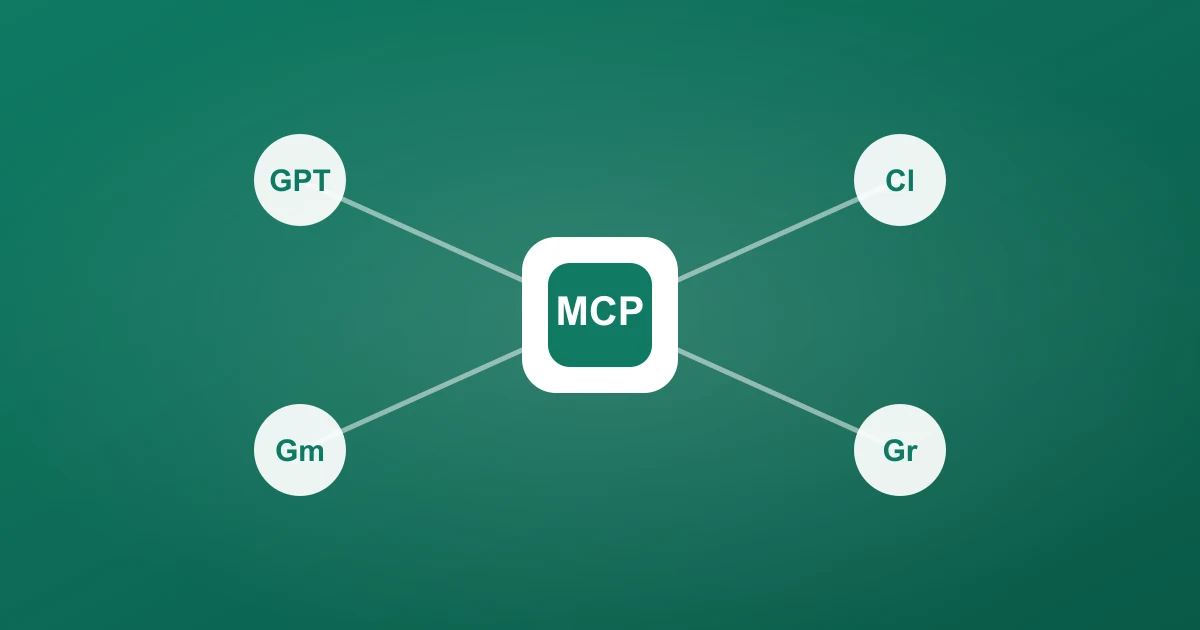
You already live in ChatGPT or Claude. So why bounce out to a website, paste a URL, wait, download a CSV, and re-upload it just to analyze some comments? With MCP (Model Context Protocol), you don't have to. Connect ZocialComment to your AI assistant once, and from then on you can just say "export the comments from this TikTok and tell me what people are complaining about" — the assistant pulls the comments and analyzes them in the same breath.
This guide shows the exact steps for Claude, ChatGPT, Grok, and Gemini. Setup takes about a minute, and for Claude and ChatGPT there's no API key and no config file — you paste one URL and sign in.
Same flow in ChatGPT — add the connector once, then ask in plain words:
What is MCP, in one sentence?
MCP is an open standard that lets an AI assistant use external tools through a single, secure connection. ZocialComment publishes an MCP server, so any assistant that speaks MCP can create exports and download comments for you — with your permission, through a normal sign-in.
The one thing you need: your connector URL
Sign in to ZocialComment, open Settings, and you'll find your connector URL under "Connect your AI assistant":
https://zocialcomment.com/api/mcpThat single URL is all four assistants need. You'll authorize with your account the first time you connect — no API key to copy, no JSON to edit.
Claude (Desktop, claude.ai, or Claude Code)
Claude has the cleanest setup because it supports remote MCP connectors natively.
- Open Settings → Connectors.
- Click Add custom connector.
- Name it ZocialComment and paste
https://zocialcomment.com/api/mcp. - Claude opens a browser window — sign in with your ZocialComment account and click Authorize.
- Start a new chat and ask: "Export the comments from this TikTok: [URL]."
In Claude Code, the equivalent is one command — claude mcp add — but the connector URL flow above is what most people want.
ChatGPT (Plus, Pro, Business, or Enterprise)
ChatGPT supports custom MCP connectors through Developer Mode. You need a paid plan, and the server must be HTTPS — ZocialComment is.
- Go to Settings → Connectors → Advanced and enable Developer Mode.
- In the Connectors tab, choose Create / Add custom connector.
- Paste
https://zocialcomment.com/api/mcpand complete the sign-in to authorize. - In a chat, click the + in the composer, open Developer mode, and select the ZocialComment connector as a source.
- Ask it to export comments from any supported URL.
ChatGPT flags connector tool calls for review — a good habit. Approve the export calls and you're set.
Grok (xAI)
Grok connects to third-party tools through xAI Connectors and "bring your own MCP server." In Grok's connector settings, add a custom MCP server and point it at https://zocialcomment.com/api/mcp, then authorize. Grok's MCP support is also available through the xAI API and SDK if you're building on top of it.
Gemini (via the Gemini CLI)
Google's consumer Gemini app doesn't yet add custom MCP servers from a settings screen, but the Gemini CLI does. Add ZocialComment to your settings.json under mcpServers, pointing at the connector URL, then run the CLI and ask it to export comments. If you're on Vertex AI or Gemini Enterprise, MCP tools are supported there as well. Expect first-class support in the Gemini app to follow as MCP adoption grows.
What to do once it's connected
The point of MCP isn't just exporting — it's exporting and analyzing in one place. Some prompts that work:
- "Export the comments from these three TikTok videos and summarize the top five complaints."
- "Pull the comments on this Facebook post and list every question people asked."
- "Export this Instagram reel's comments and flag anything that looks like a buying signal."
- "Download the CSV of that export so I can drop it into a spreadsheet."
The assistant handles the export behind the scenes and works with the results immediately — no tab-switching, no manual download.
Planning to analyze comments with AI? Start with the right pipe
Every AI assistant can reason about comments. None of them can get comments on their own — TikTok, Instagram and Facebook render comments behind scrolling, logins and rate limits that a browsing tool gives up on after a few dozen rows. If the plan is "use AI to understand what people are saying", the bottleneck is never the model. It's getting a complete, clean set of comments in front of it. That is the job ZocialComment does, and it does it in a way built for this exact workflow:
- Large exports, no context limit. An assistant's tool result has a hard token ceiling — paste 5,000 raw comments into a chat and it fails. The MCP tools return the export as a file the assistant downloads and reads, so a 20,000-comment reel or a 100,000-comment viral video is analyzed the same way a 200-comment post is. Large exports also page in fixed-size chunks for assistants that cannot fetch URLs, so the full set is always reachable.
- Fast. Scraping runs on ZocialComment's servers in the background, not in the assistant's browsing tool. Most posts complete in under a minute; the assistant polls a status tool and picks up the file the moment it is ready. No waiting on a tab, no "the page timed out".
- Bulk, across platforms. One connector covers TikTok, Instagram, YouTube, Facebook, Threads, Reddit, Lemon8 and Google Reviews. With a pass active, exports are unlimited — ask for ten videos from a campaign in one message and the assistant runs them back to back, then compares them.
- Replies included. Threaded replies are expanded into rows with a
reply_to_id, so the assistant sees the conversation, not just the top level. That is where "is this a complaint or a joke" usually gets decided. - Clean columns the model already understands. Author, username, text, likes, replies, timestamp, language — consistent across platforms, so one prompt works for a TikTok and an Instagram export alike.
What this unlocks is speed to an answer. Typical asks that go from "export" to "decision" in one conversation:
- Support triage: "Export the comments on our last five posts, group every complaint by product issue and count them." A launch-day problem shows up in comments hours before it shows up in tickets.
- Product questions: "List every question people asked, dedupe them, and draft an FAQ." The questions are your next content calendar.
- Buying signals: "Flag comments that ask where to buy, the price, or shipping — with usernames." Hand the list to whoever answers DMs.
- Competitor research: "Export comments on these three competitor videos and summarize what their audience wishes the product did." Their comment section is free customer research.
- Creator vetting: "Export comments from this creator's last ten videos and estimate how much is genuine engagement versus emoji spam." Do this before you pay for a collab.
The alternative is copy-pasting screens of comments into a chat, one scroll at a time, and hoping the model does not lose the thread halfway through. If AI analysis is the goal, a proper export pipe is the difference between an afternoon and a sentence.
Troubleshooting
- "Invalid URL" or HTTPS error: Custom connectors require an
https://URL. Usehttps://zocialcomment.com/api/mcp, not a local orhttpaddress. - Sign-in loops or "not authorized": Make sure you're logged in to ZocialComment in the browser window the assistant opens, then click Authorize. You can revoke and reconnect anytime from Settings.
- ChatGPT doesn't show the option: Developer Mode requires a paid plan and must be enabled in Advanced settings first.
- Export says you're out of free exports: The free tier covers the first 100 comments per video and 3 videos a day. Beyond that, exporting through the assistant is billed exactly like the website (a one-time charge, or a pass).
Why this matters
Comment data is only useful once it's in front of the tool you'll actually reason with it in. MCP collapses the "export here, analyze there" workflow into a single conversation. Connect once, and every future analysis starts with a sentence instead of six manual steps. Prefer a browser? The same exports run from a URL in the Instagram Comment Downloader or the TikTok exporter.