
You can download Instagram and Facebook comments with one click from the post itself. The ZocialComment Chrome extension puts a small green download icon next to the Share button on every public post — on Instagram, Facebook, X, Threads and YouTube — and clicking it saves the comments as an Excel file without leaving the page. No copying links, no second tab, no spreadsheet clean-up. Get it from the Chrome Web Store.
This guide shows where the icon sits on each platform, what happens after you click it, why it sometimes turns grey, and what ends up in the file. The first 100 comments of any public post download free with no signup; the rest is covered further down.
Install it in under a minute
- Open ZocialComment in the Chrome Web Store and click Add to Chrome. It also installs in Edge, Brave and other Chromium browsers.
- Click the puzzle-piece icon in the toolbar and pin ZocialComment, so the account card is one click away.
- Refresh any Instagram, Facebook, X, Threads or YouTube tab you already had open — the icon only appears on pages loaded after installing.
That is the whole setup. There is nothing to configure and no account to connect.
Check you are on version 1.1.0
Everything in this guide — the download icon next to Share, the grey icon with its tooltip, the progress bars and the account card — arrived in version 1.1.0. Earlier versions used a floating button and a paste-a-link popup instead. To check, open chrome://extensions and look at the number under ZocialComment. Chrome updates extensions on its own within a few hours; to update right away, switch on Developer mode at the top right of that page and click Update. If Chrome asks you to approve access to X, accept it — 1.1.0 adds the icon on X posts.
Where the download icon shows up, platform by platform
The icon always lives in the post’s own action row, next to the buttons you already use. Each platform lays that row out differently, so here is exactly where to look.
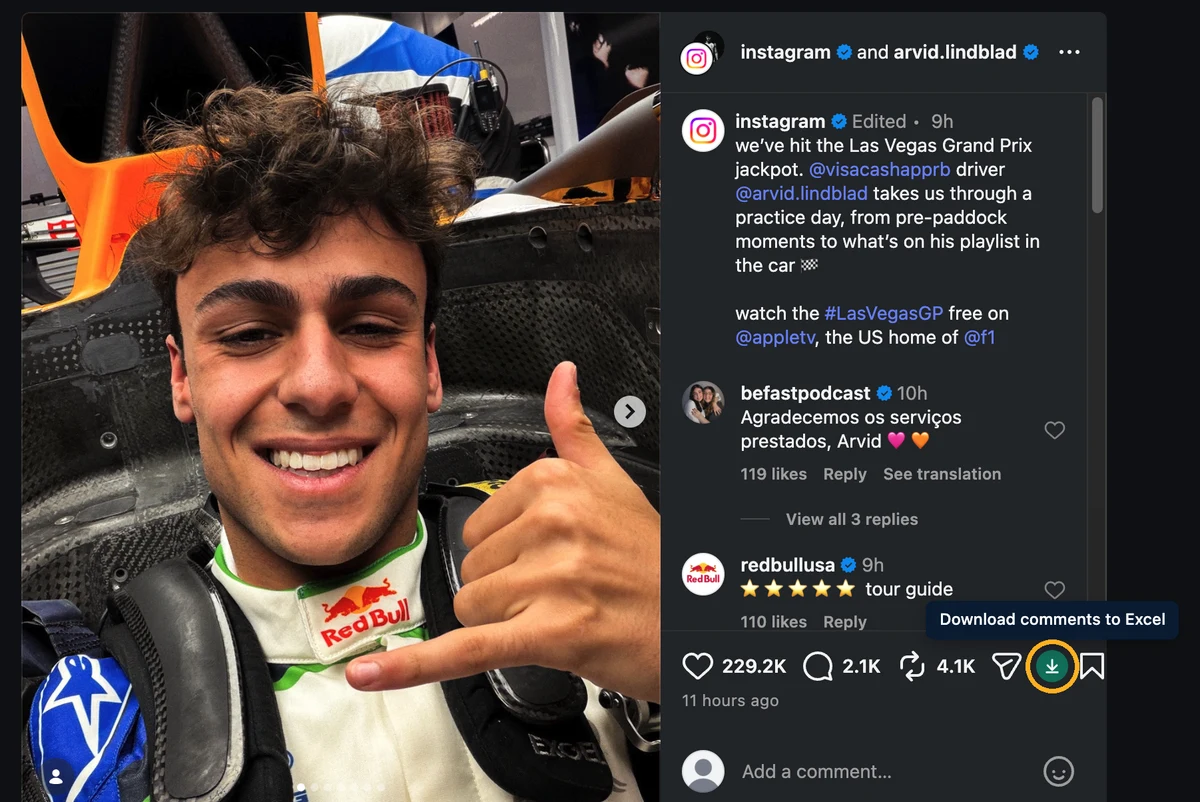
Instagram: next to Share, before Save
In the home feed, on a post page and in the pop-up you get from a profile grid, the icon sits after the paper-plane Share button. In the full-screen reels viewer it stacks under Share in the vertical column. Instagram often hides comment counts, so the icon stays active on every post and tells you afterwards if the post had nothing to download. For pasting links instead, see the Instagram comment exporter.
Facebook: right after Share — in feeds, groups, pages and reels
On page posts, group posts and the news feed the icon follows the Share button. In the Facebook reel viewer it appears in the vertical column under Share. Facebook hides a feed post’s real link until you hover its timestamp, so the extension reads the permalink from that timestamp itself — you never have to open the post first. The Facebook comment exporter handles the same posts by link.

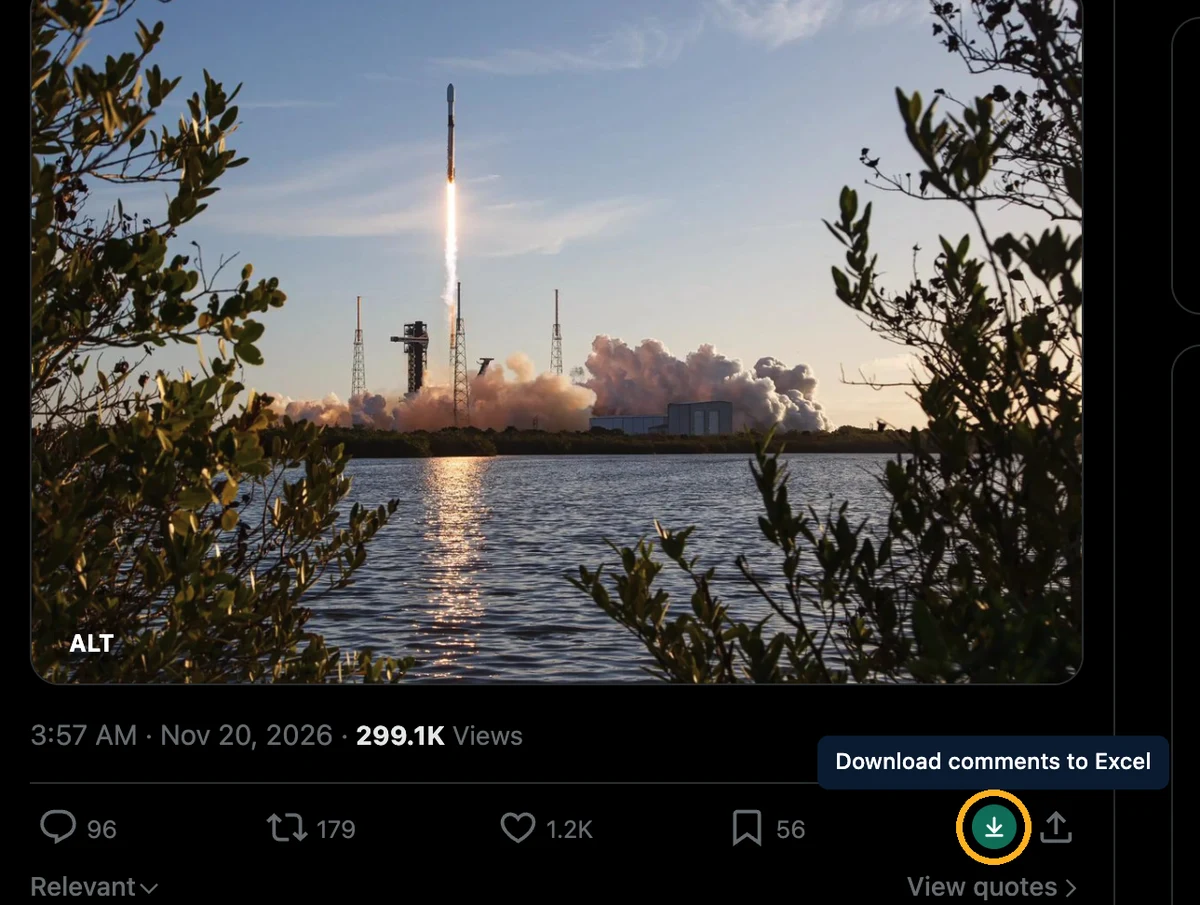
X: between Bookmark and Share
On X the icon joins the reply, repost, like and bookmark row on every post, on timelines and on the post page. Posts with zero replies show a grey icon, because there is nothing to export yet.
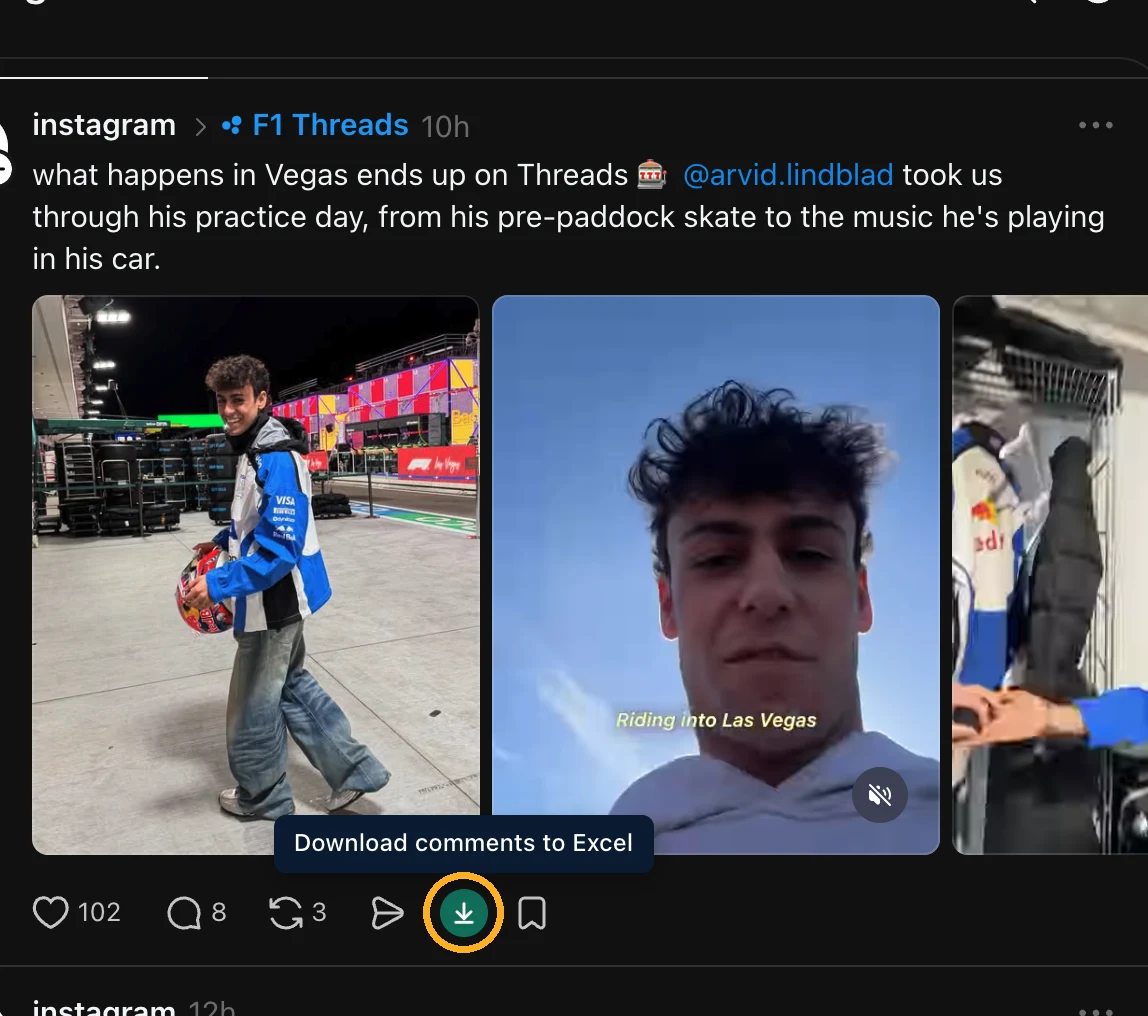
Threads: after Share, before Save
Threads gets the icon after the Share arrow on every post in the feed and on post pages, and greys it out on posts with no replies. The Threads comment exporter takes the same links if you prefer pasting.
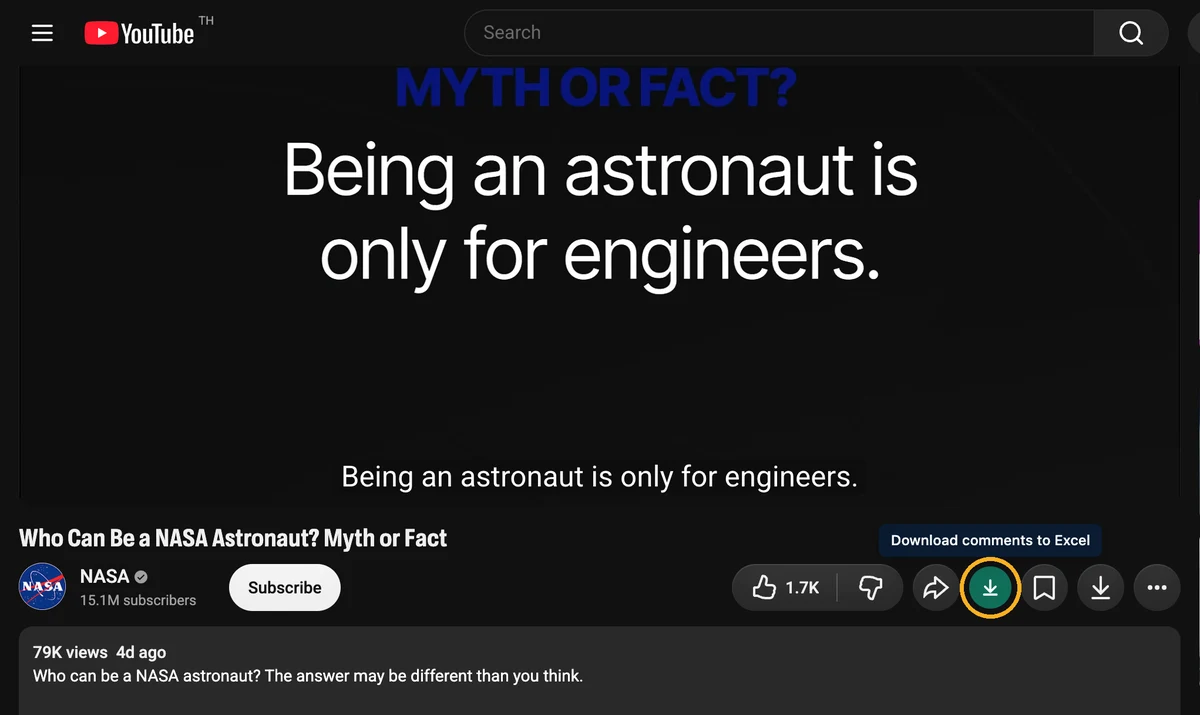
YouTube: in the bar under the video
On a YouTube watch page the icon sits after Share in the like and share bar. YouTube loads its comment count lazily below the fold, so the icon is always active there. Videos with comments turned off by the creator return an empty result — YouTube explains why comments can be turned off.
What one click actually does
Clicking the icon starts the same export the website runs, without opening the website:
- Counting. A message at the bottom of the page reads Counting comments…, then Found 2,071 comments.
- Exporting. A progress bar fills as comments are collected — Exporting comments… 45 of 100 — with a See export link at the top right if you want to watch it on the export page.
- Downloading. The .xlsx file saves to your Downloads folder and the message confirms how many rows it holds.
Click icons on several posts and each one gets its own progress message, stacked at the bottom of the page. With a pass, exports run one after another; the ones waiting say Queued — starts when your current export finishes and start on their own. A very large post never shows a false failure — if it runs long, the message hands off to the export page, where the file will be ready.
When the icon turns grey (and why)
A grey icon is the extension telling you, before you waste a click, that this post cannot be downloaded. Hover it and a tooltip gives the reason:
- “Only public posts can be downloaded — this one isn’t public.” Facebook removes the Share button from posts shared with friends only or inside private groups. The extension reads that and stops, because the export only ever sees what a logged-out visitor sees. Facebook’s own help page explains how post audiences work.
- “No comments to download yet.” The post shows no comment count above zero. The icon turns green on its own as soon as one appears.
- “No replies to download yet.” The X and Threads version of the same rule.
Grey icons ignore clicks, so they never use up one of the day’s free exports.
What lands in the Excel file
Every export uses the same first columns on every platform, so files from Instagram, Facebook and YouTube line up when you merge them:
author, username, text, likes, replies, created_at, language, is_pinned, id, reply_to_id, avatar_url
After those come the platform’s own fields — verification flags, reaction counts and so on. Replies are their own rows, linked to their parent through reply_to_id, which makes threaded giveaway entries and support conversations easy to follow. If you need CSV or JSON instead of Excel, the See export link opens the same export with all three formats; this walkthrough of working with comments in Excel covers sorting, filtering and counting entries.
Your account card in the toolbar
Click the ZocialComment icon in the Chrome toolbar and you get an account card rather than another export form: your profile, your current plan and when it ends, and a button to buy or extend a pass. Signed out, it explains the icon and offers a one-click sign-in.
Sign in to the extension
- Click the ZocialComment icon in the Chrome toolbar (pin it first if it is hidden behind the puzzle piece).
- Click Sign in with ZocialComment. A small sign-in window opens.
- Log in the way you do on zocialcomment.com — Google or email. New here? Create a free account in the same window. If you are already logged in on the website, the window skips this step.
- The window closes by itself and the card now shows your name, email and Current plan.
- No pass yet? Click Buy a pass on the card. It opens the pricing page, and the extension picks up the new plan the next time you open the card.
To switch accounts, click Log out on the card and sign in again. My exports opens every file you have downloaded, in all three formats.
Signing in matters only for posts bigger than the free sample. A pass is a one-time payment, never a subscription, and once you are signed in to the extension the icon uses it automatically: the progress bar counts the whole post instead of the first 100, and the final message links to the export instead of an upgrade.
Why it never touches your social accounts
Most comment-export extensions work by scrolling the comment section in your own logged-in session. That is why they ask for broad permissions, and why heavy use can get the user’s account rate-limited. This one is built the other way round.
- The export runs on our server, not in your session. The icon sends the post link to ZocialComment, which reads the public comments as a logged-out visitor. Nothing is liked, followed, viewed or sent as you, so nothing can be blocked on your account.
- Small permission footprint. The extension asks only for storage (to remember your sign-in) and identity (for the sign-in window), and talks to one server: zocialcomment.com. Its page script only adds the icon and reads the post link. Chrome’s documentation explains what each permission warning means and how content scripts are limited to the pages they declare.
- Your file, your responsibility. A comment export contains personal data. If you work in or with the EU, the GDPR applies to what you keep and how you use it — keep only the columns you need and anonymise before sharing.
If you are weighing extensions against a plain website in general, our look at the trade-offs of comment-export extensions lays out the risks this design avoids.
How we know this
We build and run ZocialComment, and this extension was tested against live posts on every platform before release, not against mock pages. A few things we learned that shape how it behaves:
- The badge is almost never the row count. In our tests a Facebook group post showing 99 comments exported 83 rows, and we have seen an Instagram post with a badge of 1,189 that had 165 readable comments. Platforms count hidden, filtered and deleted comments in the badge; the file holds what a public visitor can read. That is why the extension only shows Get all comments when the free sample really stopped at 100, not whenever the file is shorter than the badge.
- Facebook hides feed links until you hover. Our first build hovered every link in a post to reveal the permalink — and popped up profile cards. It now focuses only the timestamp link, which is where Facebook keeps the post’s real address.
- Labels are translated; markers are not. Buttons say “Share”, “แชร์” or “Compartir” depending on the user, so the extension never matches on text. It uses the platforms’ own untranslated markers and the fixed order of each action row.
- Friends-only posts cannot be exported by anyone without your login, so the icon says so up front instead of failing after a click.
Column names, limits and platform coverage in this guide are the live product values at the time of writing. For each platform’s own rules, its official help pages linked above are the authority.
Common snags and quick fixes
- No icon at all: check the version is 1.1.0 or later in
chrome://extensions, then refresh the tab. Pages opened before the install or update do not have it. - “Daily free limit reached (3 exports/day)” or “Sign in (free) to keep exporting”: without a pass, the extension downloads up to 3 posts a day, counted per browser and connection. Signing in with a free account does not add more. A pass removes the limit — the message links to it — or the allowance resets the next day. Grey icons never count against it.
- “No comments found on this post”: the export ran but the public view had no comments — usually comments are turned off or limited to followers.
- The icon spins but nothing downloads: check that Chrome is allowed to download files from zocialcomment.com — the file comes from there, not from the social site.
Add the ZocialComment extension to Chrome →
Related reading: exporting Instagram comments to Excel, exporting Threads comments, do you need a comment-export extension?